
Problem:
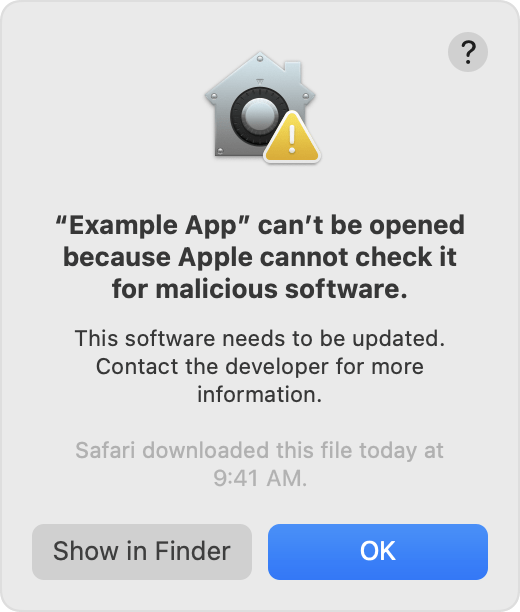
If you try to open the installer package you downloaded, and you are blocked by the Mac System. You may need to disable the Gatekeeper within your system preferences. You may see a prompt like this:

Solution: Make sure you have dragged the installer package to /Applications to complete the installation. Our users have found that dragging the package into the Applications folder works best. This package appears after the installer .dmg file is opened.
Problem:
After upgrading to their Mac OSX system, some mac users found that some apps can’t be opened because Apple cannot check it for malicious software. A dialog box pops up, click "OK" button and the application will close.
Solution:
1. Go to “System Preferences” then “Security & Privacy”. Under the General tab, you will see a message at the bottom, “Line 6 Updater.pkg was blocked from opening because it is not from an identified developer.”
2. Click on “Open Anyway” and the application will be opened.

If none of these steps help you open the Line 6 Updater installer:
For newer versions of Mac OS - you can also try our latest update utility software Line 6 Central. That's a separate download on our downloads page. Simply select "Line 6 Central" from the "Choose Software" menu.