
Helix Stadium 1.4 “The Eras Update” (released October 13, 2026) includes 14 new Agoura amp channels from 6 amps (condensed into 3 models), 6 new effects, sonic improvements to existing Agoura amps, new features, numerous improvements, and a metric ton of bug fixes, and is strongly recommended for all Helix Stadium XL, Helix Stadium Floor, and Helix Stadium Native users.
|
IMPORTANT! As always, Helix Stadium and Helix Stadium XL users MUST ALSO install the latest version of the Helix Stadium app, available here. |
|---|
New Amps in 1.4
14 new Agoura amp channels from 6 amps bring the Agoura channel count to 67. (Brit SL100 is really four completely different amp models with 3 channels each.) If you count the 111 HX channels (and you should), that's 178 amp channels total.

Amp > Brit SL100 ('67 Normal, '67 Bright, '67 Jumped, '68 Normal, '68 Bright, '68 Jumped, '70 Normal, '70 Bright, '70 Jumped, '71 Normal, '71 Bright, and '71 Jumped channels), based on* various eras of the Marshall® Plexi Superlead
The Superlead circuit evolved over the years. In general, the preamp circuit gradually got more gain as time went on. Also, the bright channel got brighter over the years; first by cutting more bass with cathode bypass caps and changing coupling caps, followed by adding a treble boost shelf cap, and finally by the choice of the bright cap on the bright channel volume knob.
In the power amp, the negative feedback and the presence circuits changed, which also allowed for more gain and the potential for more treble boost in the power amp circuit.
These changes happened between 1967 and 1974. Also, there was no hard line where things changed. Marshall seemed to build with what they had on hand. Sometimes the 0.0022uf bright channel coupling cap in a 1971 year amp would be 0.022uf, which was more like the earlier versions, and it would be a bossier amp. Sometimes the bright cap on the volume knob wouldn’t be there. Other times, they would be an unexpected value for the year that the amp was made.
The one place where we decoupled our model from reality is the Bright Cap control. We give the user the option of none, or the four most popular values found in the amp over the years. We did this because adding, removing, or changing the value of the bright cap was a popular modification. For instance, we are fairly certain that our Plexi at Line 6 had its bright cap removed PROBABLY sometime in the 70s or 80s. We love the sound of the amp as is, but to many Marshall purists, it’s “wrong.” So now the user can tweak the bright value unit they’re happy with the result.
This is also why we don’t have a ’74 model year in the Eras amp. The only difference between the ’71 and the ’74 is the value of the bright cap on the bright channel volume knob.
Some personal insight: I’ve known about these variations of the Superlead circuit for years, but I don’t have a lot of hands-on experience. Playing this model enlightened me. My preconceived notion is that the bright channel would just be brighter and louder as the years and bright cap values increase. Technically this is true. However, the following gain stage distorts very easily. The result is much more like the classic “add a treble booster” trick that Brian May or Tony Iommi used. The amps don’t sound much brighter, but they just get a LOT more crunch in the upper midrange and tighter on the bottom end.
For me, it was like turning the amp from vintage 60s to dirty, jean-jacket rock of the mid 70s. I love it so much. It really is a great example of how much the attitude of an amp can change if you just add—or change—3 or 4 components.
—Ben Adrian, Sound Design Manager
|
Parameter |
Description |
|---|---|
|
Channel |
Selects the channel—Normal, Bright, or Jumped. Given that there are four distinct amp models (1967, 1968, 1970, and 1971, chosen from the Era knob), this Agoura model includes 12 amp channels total. |
|
Era |
Determines which year of Super 100 amp is selected—1967, 1968, 1970, or 1971. |
|
Nrm Drive |
Controls the amount of Normal channel gain applied to the signal. The inactive channel can sometimes “bleed into” the active channel, resulting in interesting interactions. |
|
Brt Drive |
Controls the amount of Bright channel gain applied to the signal. The inactive channel can sometimes “bleed into” the active channel, resulting in interesting interactions. |
|
Bass |
Controls the low frequency EQ of the tonestack. |
|
Mid |
Controls the midrange frequency EQ of the tonestack. |
|
Treble |
Controls the high frequency EQ of the tonestack. |
|
Level |
Controls the overall level of the Amp block. Unlike Master Volume, it has no effect on the block's tone. |
|
BrightCap |
Controls the amount of capacitor-based treble bleed on the Brt Drive knob, set in picofarads (pF). At lower gain settings, this setting can add brightness and bite; Bright Cap is more subtle at higher gain settings. Does not apply to the Normal channel. |
|
Master |
Controls the Master Volume of the amplifier. As with the real thing, higher values can introduce power amp saturation that affects intensity and sag. |
|
Presence |
Boosts upper mid and high frequencies in the power amp, resulting in additional punch and bite. |
|
Sag |
Controls the amount of sag, or how much the power supply compresses or "droops" in response to striking the strings hard. Higher values provide more touch dynamics, sustain, and organic feel that's inherent in vintage tube amps; lower values offer a "tighter" responsiveness for a more modern feel. |
|
Ripple |
Controls how much AC ripple interacts with your tone. Power amp circuits will sometimes let a little bit of rectified 120Hz hum (that the power supply filter caps can't quite fully remove) into the audio signal when the power supply is being pushed hard. Much like Hum, Ripple provides a bit of non-musical distortion to the power amp at distorted settings. |
|
Z PrePost |
Determines the location of speaker impedance characteristics in the power amp, primarily due to negative feedback. Higher values mean the effects of the interaction appear at the output of the power amp (Post) and lower values mean more of the effect is fed back to the input of the power amp (Pre). |
|
Hype |
Depending on the amp and/or amp settings, increasing Hype may subtly or dramatically adjust various behind-the-scenes parameters to make the amp sound and feel smoother, fuller, punchier, tighter, and/or more forgiving, but at the expense of accuracy. |

Amp > Omega Granophyre, based on* the Omega Ampworks® Granophyre 6L6
|
Parameter |
Description |
|---|---|
|
Jack |
Sets the input jack on the amp—Low or High. |
|
Drive |
Controls the amount of gain applied to the signal, which influences the level of distortion. |
|
Bass |
Controls the low frequency EQ of the tonestack. |
|
Mid |
Controls the midrange frequency EQ of the tonestack. |
|
Treble |
Controls the high frequency EQ of the tonestack. |
|
Voice |
Switches the voicing of the midrange knob between lower mid focus and higher mid focus. |
|
Volume |
Controls the level of the preamp into the phase inverter before the power amp. Turn Volume down and Master up for big, chunky low end or turn Volume up and Master down for a darker response with a bit of midrange grit. |
|
Level |
Controls the overall level of the Amp block. Unlike Master Volume, it has no effect on the block's tone. |
|
Presence |
Boosts upper mid and high frequencies in the power amp, resulting in additional punch and bite. |
|
Depth |
Controls the low frequency response in the power amp. |
|
NFB |
Controls the amount of NFB (Negative Feedback) within the power section. “Open” is a bit smoother and darker; “Closed” slightly increases aggression and attack. |
|
Master |
Controls the Master Volume of the amplifier. As with the real thing, higher values can introduce power amp saturation that affects intensity and sag. |
|
Sag |
Controls the amount of sag, or how much the power supply compresses or "droops" in response to striking the strings hard. Higher values provide more touch dynamics, sustain, and organic feel that's inherent in vintage tube amps; lower values offer a "tighter" responsiveness for a more modern feel. |
|
Ripple |
Controls how much AC ripple interacts with your tone. Power amp circuits will sometimes let a little bit of rectified 120Hz hum (that the power supply filter caps can't quite fully remove) into the audio signal when the power supply is being pushed hard. Much like Hum, Ripple provides a bit of non-musical distortion to the power amp at distorted settings. |
|
Z PrePost |
Determines the location of speaker impedance characteristics in the power amp, primarily due to negative feedback. Higher values mean the effects of the interaction appear at the output of the power amp (Post) and lower values mean more of the effect is fed back to the input of the power amp (Pre). |
|
Hype |
Depending on the amp and/or amp settings, increasing Hype may subtly or dramatically adjust various behind-the-scenes parameters to make the amp sound and feel smoother, fuller, punchier, tighter, and/or more forgiving, but at the expense of accuracy. |

Amp > Prosecutor, Line 6 Original
Prosecutor is the first Line 6 Original amp to use Agoura technology. The Litigator was very popular among Helix users, so it seemed like the perfect test platform to explore the possibilities of original Agoura amps.
The amp started with the original Litigator model, with all of its tone shaping circuit tweaks for easy playing and well-behaved clipping. Then every HX tube DSP block was replaced with a new Agoura version. Since the Agoura tubes are component-based, component values and voltages of classic amps were utilized first. From there, component and voltage values were tweaked to sweeten the tone and playing response; exactly how a tube amp designer would refine and test a circuit.
The result is not a direct match to the HX version; that was not the intent. The Agoura Prosecutor is a further refinement of a favorite, with a new outlook on tube simulation and more sophisticated DSP code.
—Ben Adrian, Sound Design Manager
|
Parameter |
Description |
|---|---|
|
Drive |
Controls the amount of gain applied to the signal, which influences the level of distortion. |
|
Bass |
Controls the low frequency EQ of the tonestack. |
|
Mid |
Controls the midrange frequency EQ of the tonestack. |
|
Treble |
Controls the high frequency EQ of the tonestack. |
|
Presence |
Boosts upper mid and high frequencies in the power amp, resulting in additional punch and bite. |
|
Master |
Controls the Master Volume of the amplifier. As with the real thing, higher values can introduce power amp saturation that affects intensity and sag. |
|
Sag |
Controls the amount of sag, or how much the power supply compresses or "droops" in response to striking the strings hard. Higher values provide more touch dynamics, sustain, and organic feel that's inherent in vintage tube amps; lower values offer a "tighter" responsiveness for a more modern feel. |
|
Level |
Controls the overall level of the Amp block. Unlike Master Volume, it has no effect on the block's tone. |
|
Ripple |
Controls how much AC ripple interacts with your tone. Power amp circuits will sometimes let a little bit of rectified 120Hz hum (that the power supply filter caps can't quite fully remove) into the audio signal when the power supply is being pushed hard. Much like Hum, Ripple provides a bit of non-musical distortion to the power amp at distorted settings. |
|
Z PrePost |
Determines the location of speaker impedance characteristics in the power amp, primarily due to negative feedback. Higher values mean the effects of the interaction appear at the output of the power amp (Post) and lower values mean more of the effect is fed back to the input of the power amp (Pre). |
|
Hype |
Depending on the amp and/or amp settings, increasing Hype may subtly or dramatically adjust various behind-the-scenes parameters to make the amp sound and feel smoother, fuller, punchier, tighter, and/or more forgiving, but at the expense of accuracy. |
New Effects in 1.4

Distortion > Mercator, based on* Ben Adrian’s Cartographer preamp circuit
I’ve used the Cartographer preamp model as a distortion pedal in front of other clean amp models for many years. This setup just works for me. It turns one amp model into a two channel amp. It also makes my presets feel more like the pedalboard I might’ve used in my pre-Helix days. And as a bonus, it uses far less DSP than loading two full amp models.
However, there are downsides. I’ve never liked the sound of using two amplifier tone stacks in series and often add an EQ block after the Cartographer preamp to get the desired result. Also, there are additional processes going on behind the scenes to model the preamp circuit that are unnecessary when it’s being used as a distortion pedal.
So I made the Mercator Distortion—an original distortion pedal model inspired by the tube preamp section of the Cartographer amp. The amp-style tonestack has been removed and replaced with an active treble, middle, and bass at pleasing guitar frequencies and leveling has been adjusted to work better as a pedal. DSP usage has been reduced compared to the preamp.
It’s something I’ve wanted for a long time and am happy I finally got to build it.
—Ben Adrian, Sound Design Manager
|
Parameter |
Description |
|---|---|
|
Drive |
Controls the amount of gain between the first and second tube gain stages. The character of the distortion changes depending on where Drive and Drive2 are set in relation to one another. |
|
Drive 2 |
Controls the amount of gain between the second and third tube gain stages. The character of the distortion changes depending on where Drive and Drive2 are set in relation to one another. |
|
Bass |
Controls the low frequency EQ of the distortion. |
|
Mid |
Controls the midrange frequency EQ of the distortion. |
|
Treble |
Controls the high frequency EQ of the distortion. |
|
Bright 1 |
When on, adds a high boost after the first tube stage, affecting the character and harmonics of the preamp gain. Can be subtle, especially at higher Drive settings. |
|
Bright 2 |
When on, adds a high boost after the second tube stage, affecting the character and harmonics of the preamp gain. Can be subtle, especially at higher Drive settings. |
|
Level |
Sets the overall level of the block. |

Distortion > Rock Box Dist, based on* the Z.Vex Box of Rock (Distortion Side)
TIP: As the original pedal has two discrete circuits (Distortion and Boost), consider assigning each one to a separate Stomp switch (or if space is at a premium, both to the same Stomp switch).
|
Parameter |
Description |
|---|---|
|
Drive |
Controls the amount of distortion applied to the signal. |
|
Tone |
Controls the overall tonal balance of the distortion. Lower values are darker and higher values are brighter. |
|
Level |
Sets the overall level of the block. |

Distortion > Rock Box Boost, based on* the Z.Vex Box of Rock (Boost Side)
TIP: As the original pedal has two discrete circuits (Distortion and Boost), consider assigning each one to a separate Stomp switch (or if space is at a premium, both to the same Stomp switch).
|
Parameter |
Description |
|---|---|
|
Boost |
Sets the output level of the boost circuit. |
|
Level |
Sets the overall level of the block. |

Distortion > PortaBox 424, based on* the JHS 424 Gain Stage, which itself is based on the preamp circuit in the Tascam Portastudio 424 multitrack
|
Parameter |
Description |
|---|---|
|
Gain 1 |
Controls the preamp’s input trim level. |
|
Gain 2 |
Controls the 2nd gain stage’s level, or the original 4-track tape recorder’s channel fader. |
|
Bass |
Controls the low frequency EQ of the block. |
|
Treble |
Controls the high frequency EQ of the block. |
|
Level |
Sets the overall level of the block, not unlike the original 4-track tape recorder’s master fader. |

Modulation > Essex Vibe, based on* the Vox® AC-30 with Top Boost Vibrato
|
Parameter |
Description |
|---|---|
|
Rate |
Controls the speed or rate of the effect. When set to note values, Rate follows the system tempo. |
|
Depth |
Controls the depth or intensity of the vibrato effect. |
|
Trem |
Controls the depth of the tremolo, or the intensity of the volume fluctuations. |
|
Stages |
Determines whether 1 or 2 capacitor/resistor-based phase shift stages are applied. |
|
Spread |
Controls the apparent stereo width of the tremolo effect. Stereo version only. |
|
Level |
Sets the overall level of the block. |

Modulation > Dimension W, based on* the BOSS® DC-2W Waza Craft
|
Parameter |
Description |
|---|---|
|
Version |
Determines whether the effect emulates the “C” pedal version (1985) or the classic “D” rackmount version (1979) |
|
Mode |
Determines which dimension mode is used. Higher numbers provide more effect. Select a value with two modes (1+2, 1+3, 1+4, 2+3, 2+4, 3+4) for even deeper modulation. |
|
Mix |
Controls the blend between the dimension effect and the dry signal. At 0%, no effect is heard; at 100%, no dry signal is heard. |
|
Level |
Sets the overall level of the block. |
*NOTE: All product names used in this document are trademarks of their respective owners and neither Yamaha Guitar Group nor Line 6 are associated or affiliated with them. These trademarks appear solely to identify products whose tones and sounds were studied by Line 6 during sound model development.
New Features in 1.4
USB Editing
In addition to Wi-Fi, 1.4 now lets you connect the Helix Stadium app over a USB cable.
If USB is connected, the Helix Stadium app connects this way by default. To change the connection method, click your device’s name in the upper left corner. The Connect to device window opens.

Showcase > Stem Separation
When importing a single audio file to Helix Stadium’s Showcase engine, you may now choose to split it into up to five separate stereo stems using Yamaha’s Music Connect service—drums, bass, guitar, vocals, and other.
|
NOTE: We provide free access to Yamaha’s Music Connect stem separation service as a convenience, but you can still always use your preferred stem separation app or service like Steinberg Spectralayers Pro, Steinberg Cubase, Apple Logic, Moises, http://Lalal.ai , Fadr, etc. In this case, import the individual tracks/stems (up to 8 stereo WAV files) into a new Showcase song from the Helix Stadium app’s Song menu. |
|---|
-
From the Helix Stadium app, click the song icon in the header.

-
Drag a single audio file into the field. Optionally, name the song and/or track and enter the song’s tempo and time signature.
-
Turn the [Split single track into 5 tracks/stems] toggle on and then click the blue Transfer button.

The audio file is sent to the cloud, split into 5 stems, and added as a new song with five tracks in Helix Stadium.

For more information on Showcase, see the Helix Stadium Owner’s Manual.
Showcase > Skip Marker
Sections of a song can now be automatically skipped over, determined by the Marker flag’s new Skip Marker parameter. So when your singer insists on covering “Hey Jude,” you can sneakily omit 40 of its 50 repeated end choruses.
-
On the Song screen, tap Add Flag and drag a Marker to the start of the location you want to skip. Repeat for the end of the section you want to skip. If your song already has markers, just turn the Lower Knob to select the marker flag for the section you want to skip.
-
Turn Knob 5 (Skip Marker) to On. In the screenshot below, Both Verse 1 and Verse 2’s Skip Marker is on, so when playback reaches Verse 1, playback skips over Verse 1 and Chorus 1 and begins playing Verse 2.

Proxy Clones > Nested Folders
You may now organize Proxy clones into nested folders, just like your Cab IRs.

Swap Mono/Stereo Effects
You can now quickly swap between the mono and stereo version of an effect, and your settings are retained. If the effect cannot be swapped—for example, there is no stereo (or mono) version, or the preset’s DSP cannot accommodate switching to the stereo version—the mono/stereo icon is grayed out.
NOTE: Any snapshot or controller assignments will be cleared when swapping mono/stereo effects.
-
Select an effect block and tap its mono or stereo icon in the inspector header. A dialog appears, reading “Switch to stereo [or mono] version of this effect?”
-
Tap Yes, Switch.

MIDI Control of Matrix > 1/4”, XLR, and Phones Layers
Each Matrix Mixer layer channel’s Level, Pan, Mute, and Solo (as well as Clear Solo) now has a dedicated MIDI CC for controlling it from tactile controllers, sequencers, or other MIDI devices. And because each layer responds to its own MIDI channel, up to three band members (or two band members plus the front-of-house engineer monitoring Stadium’s XLR outs) can easily control their own monitor mix from any affordable MIDI controller with real tactile knobs, sliders, and buttons.
By default, Matrix > 1/4” responds to MIDI Ch. 3, Matrix > XLR responds to MIDI Ch. 4, and Matrix > Phones responds to MIDI Ch. 5. From Global Settings > MIDI, you may change the MIDI channel each Matrix layer responds to, but it MAY NOT be the same channel as either Global MIDI commands (Ch. 1 by default) or assignable controls (Ch. 2 by default). You may, however, assign two (or all three) Matrix layers to the same MIDI channel, at which point their levels, pans, mutes, and solos respond to the same external slider, knob, and/or button. For example, you could control specific channels on both the 1/4” and Phones outputs by assigning both Matrix layers to the same MIDI channel, but leave the layers themselves unlinked so you can control their output levels (and/or different channels) separately.

-
Channel Level (CC11-29) responds to values 0-127
-
Channel Pan (CC34-52) responds to values 0 (Left 100) ~ 64 (Center) ~ 127 (Right 100)
-
Channel Mutes (CC57-75) and Solos (CC80-98) respond to any value 64 or above, which toggles their states
-
Clear/Reset Solo (CC103) responds to any value 64 or above

|
Parameter |
Level |
Pan |
Mute |
Solo |
Clear Solo |
|---|---|---|---|---|---|
|
Home (All Paths) |
CC11 |
CC34 |
CC57 |
CC80 |
|
|
Path 1A |
CC12 |
CC35 |
CC58 |
CC81 |
|
|
Path 1B |
CC13 |
CC36 |
CC59 |
CC82 |
|
|
Path 1C |
CC14 |
CC37 |
CC60 |
CC83 |
|
|
Path 1D |
CC15 |
CC38 |
CC61 |
CC84 |
|
|
Song (All Tracks) |
CC16 |
CC39 |
CC62 |
CC85 |
|
|
Track 1 |
CC17 |
CC40 |
CC63 |
CC86 |
|
|
Track 2 |
CC18 |
CC41 |
CC64 |
CC87 |
|
|
Track 3 |
CC19 |
CC42 |
CC65 |
CC88 |
|
|
Track 4 |
CC20 |
CC43 |
CC66 |
CC89 |
|
|
Track 5 |
CC21 |
CC44 |
CC67 |
CC90 |
|
|
Track 6 |
CC22 |
CC45 |
CC68 |
CC91 |
|
|
Track 7 |
CC23 |
CC46 |
CC69 |
CC92 |
|
|
Track 8 |
CC24 |
CC47 |
CC70 |
CC93 |
|
|
Click |
CC25 |
CC48 |
CC71 |
CC94 |
|
|
Count In |
CC26 |
CC49 |
CC72 |
CC95 |
|
|
USB In 1/2 |
CC27 |
CC50 |
CC73 |
CC96 |
|
|
Bluetooth In |
CC28 |
CC51 |
CC74 |
CC97 |
|
|
Aux In |
CC29 |
CC52 |
CC75 |
CC98 |
|
|
All Matrix Channels |
|
CC103 |
|||
Changes/Improvements in 1.4
-
The method by which blocks report DSP usage to the system has been improved, and depending on the types of amps and effects added, this may result in the ability to add more simultaneous blocks
-
The interaction between speaker cabinets and Agoura power amps is now more accurate. This is most apparent on 6L6-based high gain amps with the Presence knob turned up
-
The audible gap present when switching presets has been made appreciably shorter
-
Wi-Fi communication is now more reliable
-
Re-logging into one’s Line 6 Account should be required less often
-
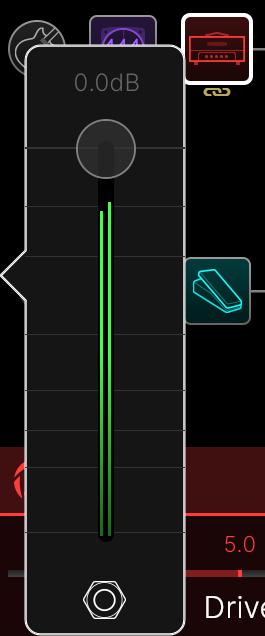
The Volume panel’s slider now displays output meters for the selected output(s):
-
When the XY Controller screen’s Rubber Band toggle is on, a circle now appears to show the position the XY node will return to after being moved:

-
In some cases, adding many thousands of Proxy clone or Cab IR files to Helix Stadium can slow down performance. We’ve now implemented a limit of 2048 Proxy clones and 2048 Cab IRs. If you attempt to add more than 2048 in either file list, a dialog box appears
-
After loading many Cab IRs (many dozens, hundreds, or thousands), Helix Stadium can falsely appear to lock up when booting the next time while it indexes the new IRs. Instead, Helix Stadium now shows you an IR import screen, followed by a progress bar:

-
The Matrix Mixer’s Pan panel now displays a Reset button, letting you quickly return the channel’s Pan to center:

-
Each song’s track names now appear in the Matrix Mixer (see screenshot above)
-
Unused song tracks are now grayed out in the Matrix Mixer (see MIDI Control of Matrix > 1/4”, XLR, and Phones Layers diagram above)
-
The number of songs in the Song List has now been limited to 256 per backup
-
The Instrument and FX Loop blocks on Proxy’s compare screen now turn green to indicate input signal
-
All built-in and externally connected expression pedals (up to 6 for Stadium XL, up to 2 for Stadium Floor) now have individual control over whether their positions are set globally or per preset. In previous versions, a single parameter applied to all pedals. Tap MENU > Global Settings > Switches/Pedals
-
While in list view on the Amp list, the delineation between Agoura and HX amps is now clearer
-
Added the ability to view 3rd party licenses from the Main Menu sidebar
-
Helix Stadium app and Helix Stadium Native—Focus view now displays each Cab IR’s frequency response:

-
Many other minor improvements
Bug Fixes in 1.4
“Hey Otto, is your carpal tunnel syndrome from playing guitar for decades?”
“No, Cecil. It’s from scrolling the list of bug fixes in the Helix Stadium 1.4 Release Notes.”
-
In rare cases, audio could remain muted or maintain the previously selected preset’s sound after a preset change, requiring a reboot
-
In rare cases, Stadium could hang on the splash screen during boot
-
Fixed a possible crash and unresponsive state with full USER preset library and 100+ setlists
-
In certain cases, performing a preset search could result in an error
-
When EXP Pedal Position was set to Global, the physical position would not always be recalled correctly
-
After performing certain undo or redo actions, Snapshot control over block bypass could occasionally be lost
-
After restarting the Helix Stadium app, imported Proxy clones could sometimes not recall correctly
-
If Proxy clones were deleted after backing them up, re-importing them from the backup could sometimes fail
-
Assigning a clone as a favorite could lose the favorite assignment after exporting and then importing them again
-
Selecting a Cab IR would close the IR menu, making it difficult to easily browse different IRs
-
In rare cases, loading a preset could cause footswitches to become unresponsive
-
EQ > Parametric’s focus view could sometimes display flickering graphics
-
EQ’s focus view now changes visually to reflect any value changes controlled by snapshots
-
If a song flag was moved past the End flag and the song saved in that state, tracks could appear grayed out and not play back properly
-
If Global Settings > Select Song was set to “Skip,” and Song Play was set to “Load+Preset,” flags could fail to trigger when the next song was loaded
-
If a song’s End flag’s End of Song is set to “Pause,” the flag could sometimes not maintain the current preset or snapshot
-
Engaging a Utility > Tuner Off or Utility > XY Off flag would inadvertently return to the Home screen
-
After clearing a Cycle flag, vertical cycle lines would sometimes remain
-
After pinch-zooming way in on a song, chase song could sometimes stop working
-
Start, Marker, and Preset/Snap flags now automatically recognize newly created setlists and presets
-
Preset/Snap Flags could not load presets from a User > Empty preset
-
If a Looper block was being controlled manually (that is, not via Showcase Looper flags), Global Settings > Songs > Looper Stops With Song was not reflected properly
-
On rare occasions, from certain states, pressing the Song button could inadvertently cue the next song
-
If Global Settings > Songs > Select Marker was set to “Next Marker,” navigating markers could behave as if it was set to “Cue”
-
Copying and pasting multiple song flags between songs now retains their Bar/Beat/Tick locations
-
Placing lots of flags close together could sometimes prevent tapping the selected flag to open its action panel
-
Tap-holding the Matrix’s header to reset the current mixer layer no longer affects the Main Volume knob
-
Pressing an output button to exit Matrix view now returns you to the previous view instead of always jumping to the Home screen
-
S/PDIF now grays out in the Output list if Global Settings > Ins/Outs > S/PDIF Out is set to anything other than “Direct Out”
-
Touching an Input block could sometimes cause the Threshold and Decay parameters to appear active, even if the Input Gate is turned off
-
Reassigning the Looper > 1 Switch Looper to a different stomp switch could sometimes prevent further loop recording
-
When the max loop time was reached, stopping playback would require two presses
-
Controlling an empty Looper block with a Command Center > Looper > Play command could prevent recording
-
With no loop in memory, Deluxe Looper > FS1 (Clear Loop) and FS2 (Undo/Redo) icons appeared as if one was
-
In a certain scenario a Looper > Deluxe Looper could be copied and pasted, resulting in duplicate blocks/assignments and an error
-
More footswitch modes > Quicksave would not always save a Factory preset with the correct name
-
Selecting a different Input > Instrument 1 (2, 1+2) > Inst In-Z value was not reflected in Undo or Redo steps
-
Selecting a different Cab IR was not reflected in Undo or Redo steps
-
When Global Settings > Preferences > Preset Numbering was set to "0-511" or "1-512," unnecessary zeroes preceded the preset number
-
In the Command Center, when assigning a Stomp switch to Ext Amp, the switch correctly latched, but its icon appeared as if it were momentary
-
In the Command Center, when assigning a Stomp switch to a specific preset, empty preset locations could offset the apparent target preset
-
In the Command Center, EXP [X] and XY > MIDI Ch would not update when assigned to Snapshot control
-
In the Command Center, Instant > Wait Time value could be inadvertently applied from the previous snapshot
-
In the Command Center and Showcase, Ext Amp command/flag states could appear inverted (open was closed and closed was open)
-
In the Tempo panel, setting Tempo Select to “Snapshot” would not visually update the BPM value when switching snapshots
-
In some cases, changing Helix Stadium’s device name (in the Main Menu’s sidebar) would not be retained after a power cycle. It was not because you named it “Your Mom’s a Stadium”
-
If Global Settings > MIDI > Duplicate Send PC was on, duplicate MIDI Commands were not disabled unless all MSB, LSB, and PC were all activated
-
Deleting clones from the Helix Stadium app would not always immediately clear them from Helix Stadium’s clone file list
-
Pressing the Home, Song, or XY button would exit the Proxy compare and save screens with no warning
-
While in the New Clone menu, incoming MIDI PCs were still recognized, and would inadvertently load a different preset
-
MIDI CC127 could not be manually selected as a controller source
-
In rare cases, Distortion > Bronze Master could not recall the correct drive setting upon preset change
-
In rare cases, Distortion > Killer Z’s parameters could reset if a preset was reloaded
-
Pitch/Synth > 3 OSC Synth’s FltPreset parameter could become locked to value 4
-
Stadium Floor—On Home > Play view, icons could occasionally overlap and other graphical issues could occur
-
Stadium Floor—In rare cases, touching the screen while in Home > Play view could jump to Home > Edit view
-
Stadium Floor—In Combo footswitch mode, pressing FS1 (Bank Up) or FS7 (Bank Down) now correctly causes the cued presets to flash and FS6 to display “[X] CANCEL”
-
Stadium Floor—With the Model List open, pressing the Home button would always jump to Home > Play
-
Stadium Floor—In Snapshot footswitch mode, touch-holding two snapshot switches to swap them could sometimes fail to update the Home > Play view labels
-
Helix Stadium app—Moving or deleting a large number of Cab IRs and then opening the IR file list could sometimes cause the Helix Stadium app to crash
-
Helix Stadium app—On the Sign In screen, tabbing between username and password fields would not return to the first character position, sometimes resulting in a failed login
-
Helix Stadium app—In the Command Center window, Preset commands could sometimes access the full USER PRESET list, leading to a crash
-
Helix Stadium app—Switching snapshots on the hardware wouldn’t always immediately update the app’s snapshot icon
-
Helix Stadium app—In certain cases, after copying and pasting a Split block, the signal flow could be drawn incorrectly
-
Helix Stadium app—Copying and pasting over another preset could sometimes cause the preset's label and/or assigned color to be lost
-
Helix Stadium app—Right-clicking a favorite block and selecting “Add to Favorites” would target the root folder, not the folder containing the favorite
-
Helix Stadium app—In some cases, the Helix Stadium’s device name (upper left corner of the main window) would not update if renamed from the touchscreen
-
Helix Stadium app—Copying and pasting XY controller assignments could sometimes result in the XY screen no longer controlling parameters
-
Helix Stadium app—In the Command Center window, Instant > MIDI > Note On’s Wait Time parameter was missing
-
Helix Stadium app—In the Command Center window, the footswitch icons didn’t always match the footswitch LEDs on the hardware
-
Helix Stadium app—In the Command Center window, changing a setlist could sometimes clear the Snapshot Control toggle
-
Helix Stadium app—When editing certain commands in the Command Center window, Snapshot Control could appear off when it was on
-
Helix Stadium app—Resetting a parameter in the Command Center window could sometimes prevent restoring its factory value
-
Helix Stadium app—In the Command Center window, when a source’s first command’s Action parameter is set to “Toggle,” the second command’s Action did not properly gray out
-
Helix Stadium app—In certain cases, moving a preset from Helix Stadium Native to the Helix Stadium app could cause Cab IRs to become unresolved
-
Helix Stadium app—Deleting Cab IRs from the IR list could retain them in the browser until Helix Stadium was disconnected and then reconnected
-
Helix Stadium app—Deleting folders containing Cab IRs that were dragged in from other folders could sometimes result in an error
-
Helix Stadium app—Exporting both individual Cab IR files and IR folders could sometimes result in an error
-
Helix Stadium app—In certain cases, the last used Cab IR folder could not be deleted because it would appear to be “open in another program”
-
Helix Stadium app—After power cycling Helix Stadium, opening the Song window would require a relaunch to detect content on the microSD card
-
Helix Stadium app—The Song window allowed deleting the currently loaded song
-
Helix Stadium app—In the Proxy clone list, renaming a clone would not update the name immediately
-
Helix Stadium app—Certain ASCII characters in the Proxy clone file name could prevent importing into Helix Stadium
-
Helix Stadium app—When set to two column view, adjusting EQ > Parametric’s Mid Gain or Mid Frequency parameters would cause the screen to flicker
-
Helix Stadium app—While scrolling parameters, the highlighted parameter’s value could overlay the UI
-
Helix Stadium app—Resizing the window could cause the Model List’s position to automatically scroll, causing the selected model to appear below the currently visible area
-
Helix Stadium app—For amps and effects with two or more rows of knobs, resizing the window to the smallest height could cause the Parameter popup to be cut off
-
Helix Stadium app—Pitch/Synth > Mono > Simple Pitch’s Cents parameter increment inconsistent with hardware
-
Helix Stadium app—When the currently selected block’s item was changed while Focus view was open, the User Default Factory Default buttons would not always sync properly
-
Helix Stadium app—Modulation > Legacy > Script Phase was missing Focus view “Based on” text
-
Helix Stadium app—While in list view on the Amp list, the delineation between Agoura and HX amps is now clearer
-
Helix Stadium Native—Certain users could be logged out of their account
-
Helix Stadium Native—On the Sign In screen, tabbing between username and password fields would not return to the first character position, sometimes resulting in a failed login
-
Helix Stadium Native—In some cases, Favorites within subfolders could not be selected
-
Helix Stadium Native—MIDI assign would not always work when a Favorite block is selected
-
Helix Stadium Native—Preset pop-up "Show in Finder" doesn't work if nothing is selected
-
Helix Stadium Native—Changing presets would not always visually update Input and Output Level settings
-
Helix Stadium Native—In certain cases, after copying and pasting a Split block, the signal flow could be drawn incorrectly
-
Helix Stadium Native—In certain cases, the Clip icon would appear enabled after saving a preset with no clip
-
Helix Stadium Native—While Focus view is active, resizing the window to its smallest height could cause the Cab > Cab Link toggle to overlay model details
-
Helix Stadium Native—Adding or modifying a Clone file could sometimes cause it to not immediately appear in the Clone List
-
Helix Stadium Native—When changing an Amp block’s model, the Clone block could appear linked to a Cab block
-
Helix Stadium Native—In some cases, subfolders in the Cab IR list could appear out of order
-
Helix Stadium Native—In certain cases, moving a preset from Helix Stadium Native to the Helix Stadium app could cause Cab IRs to become unresolved
-
Helix Stadium Native—Adjusting the Cab > Position parameter would not display the “Cap Edge” value, as appearing in the hardware
-
Helix Stadium Native—Cab > Angle’s values appeared as “0” and “1” instead of “0 degrees” and “45 degrees”
-
Helix Stadium Native—In some cases after disconnecting the active audio device while the DAW project is open, snapshots could no longer be changed
-
Helix Stadium Native—Copying a snapshot and then switching presets would not gray out Paste Snapshot
-
Helix Stadium Native—Resizing the window could cause the Model List’s position to automatically scroll, causing the selected model to appear below the currently visible area
-
Helix Stadium Native—For amps and effects with two or more rows of knobs, resizing the window to the smallest height could cause the Parameter popup to be cut off
-
Helix Stadium Native—While scrolling parameters, the highlighted parameter’s value could overlay the UI
-
Helix Stadium Native—Pitch/Synth > Mono > Simple Pitch’s Cents parameter increment inconsistent with hardware
-
Helix Stadium Native—While in list view on the Amp list, the delineation between Agoura and HX amps is now clearer
-
Many other fixes
Known Issues in 1.4
-
In Showcase, if your End flag’s End of Song parameter is set to “Pause,” pressing Play will not play the next song until you use the touchscreen. Workaround: Choose the value “Play Next,” “Cue Next,” “Repeat,” or “Cue Same”—or—manually select the desired song before pressing Play
Do we have to wait forever for 1.5 now?
Nope. It’s right around the corner and not what you expect.
So, does “The Eras Update” have anything to do with Taylor Swift’s Eras Tour?
No, of course not.